Quickstart Guide
Get up and running with Keystone CDP in under five minutes. This guide covers logging in, navigating the executive dashboard, checking customer profiles, and verifying live event ingestion.
Step 1: Accessing Your Workspace
Open your browser and navigate to your Keystone CDP instance domain (e.g., https://cdp.your-domain.com).
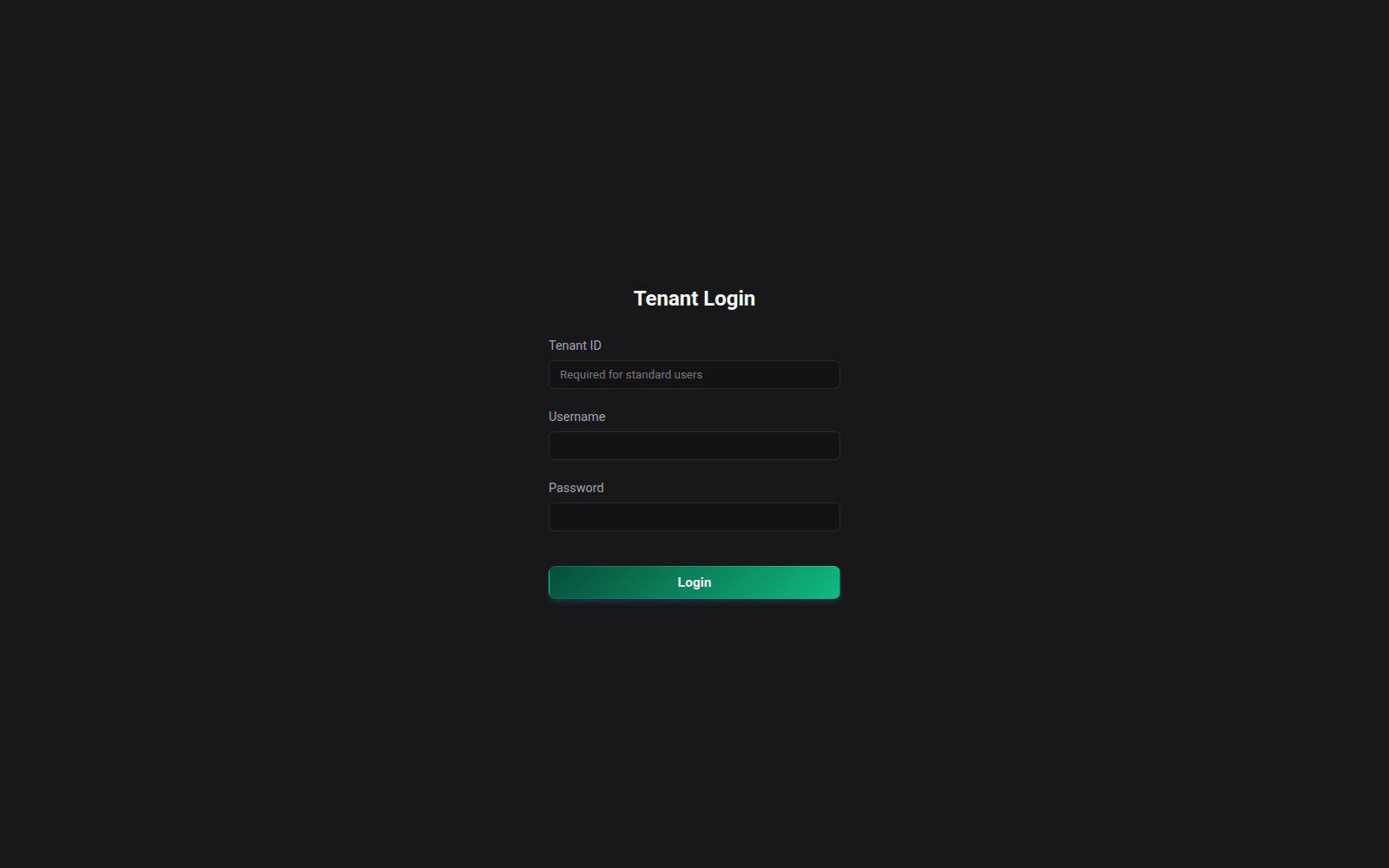
Authentication Details:
- Tenant ID: Enter your organization's unique tenant identifier (e.g.
eqordemo). - Username: Your account username or administrative email.
- Password: Your secure passphrase.
If you are conducting a demonstration or recording tutorials, log in with an admin_incognito user to activate dynamic on-the-fly PII masking across all screens.
Step 2: The Executive Dashboard
Once logged in, the primary command center is the Executive Dashboard (/dashboard).
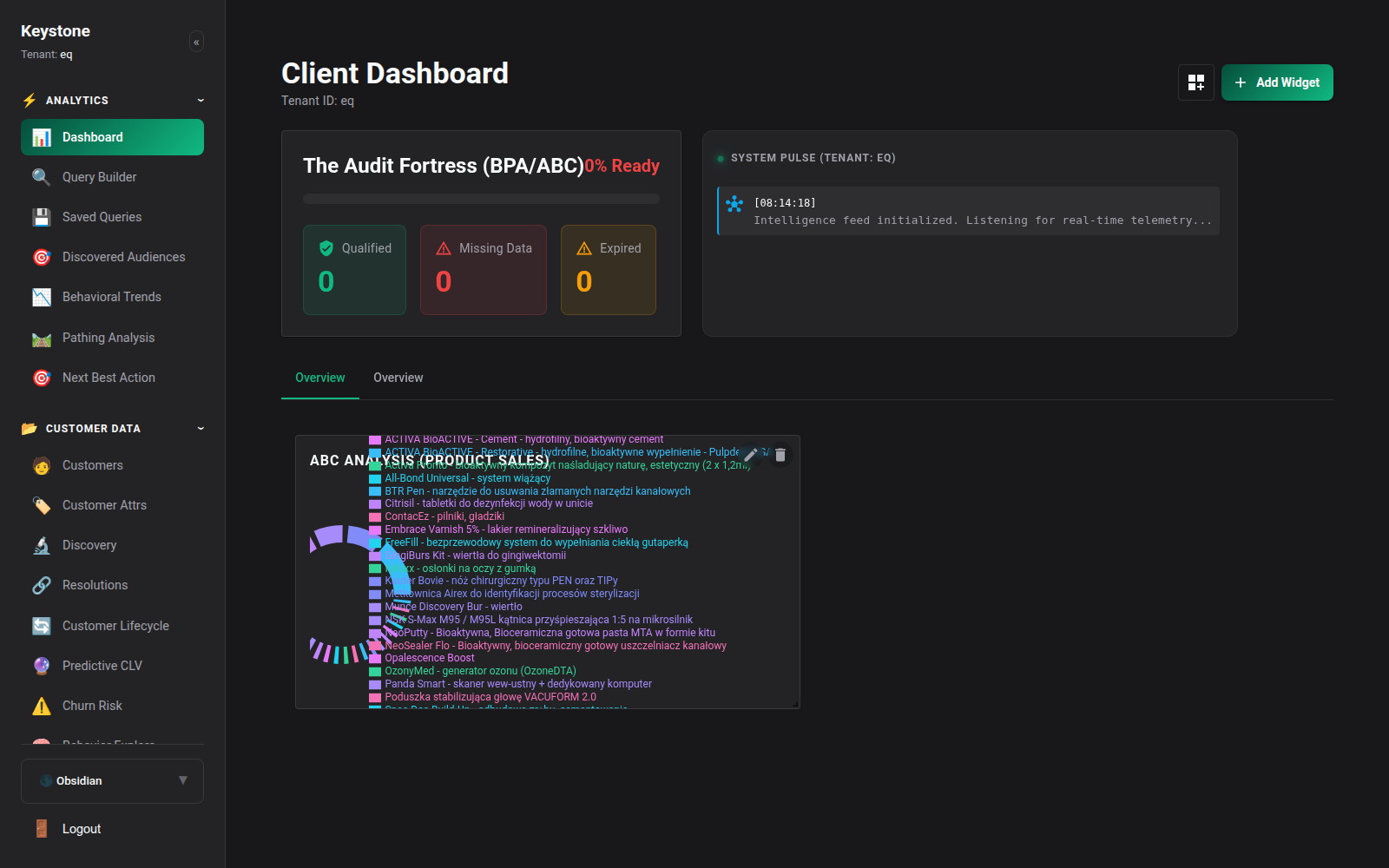
From here, you can immediately review: - Audit Fortress (BPA/ABC): Verification status of vector-based attribution and identity lineage. - System Pulse Telemetry: A live WebSocket feed of events arriving in your workspace in real-time. - Pareto ABC Product Breakdown: Quick distribution of high-value versus long-tail catalog revenue. - Core KPI Grid: Total gross revenue, order volume, average order value (AOV), and customer retention rates.
Step 3: Inspecting Customer 360
Click Customers in the main navigation sidebar to open the unified customer directory.
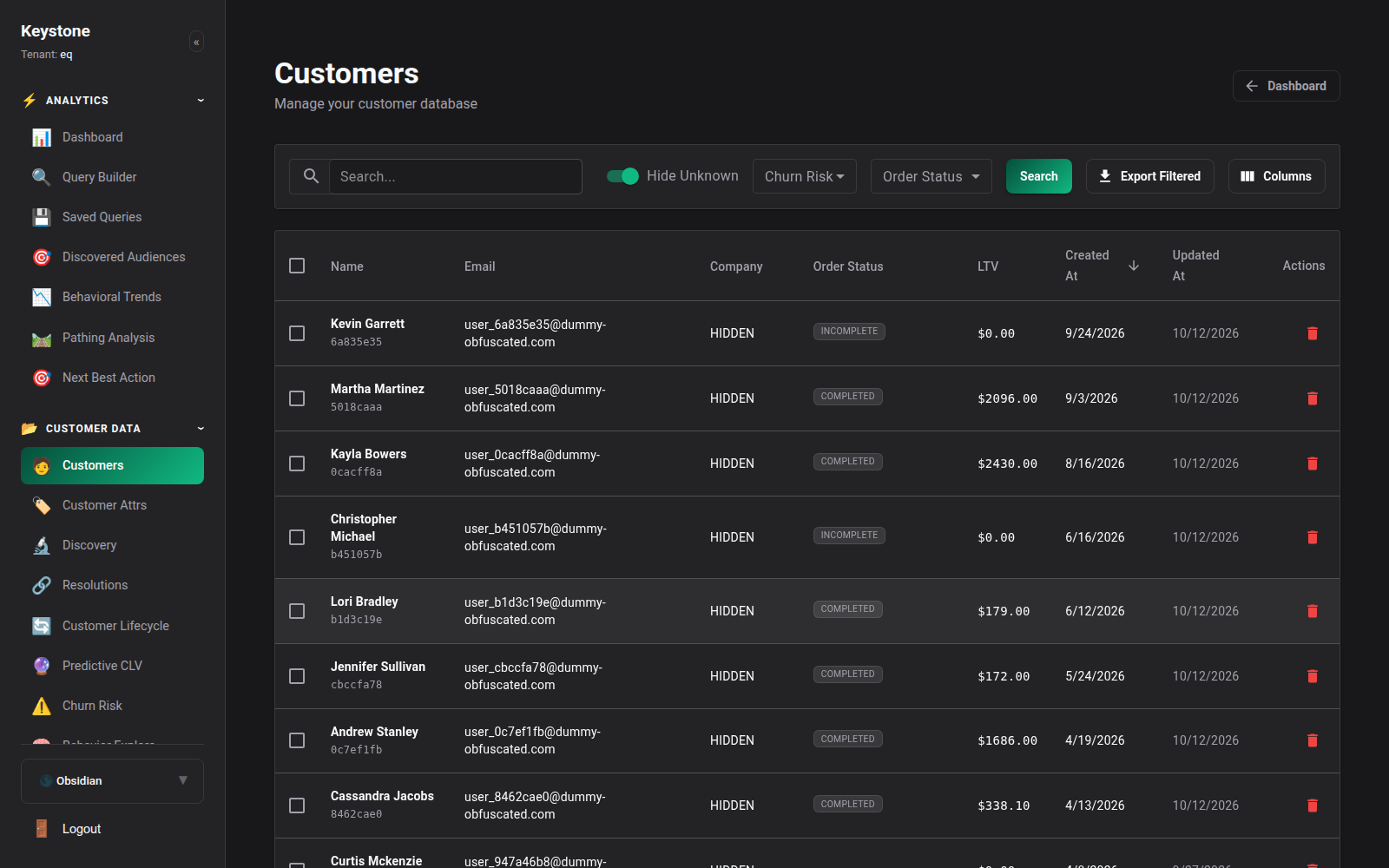
- Use the search bar to find a customer by email, phone, or identity token.
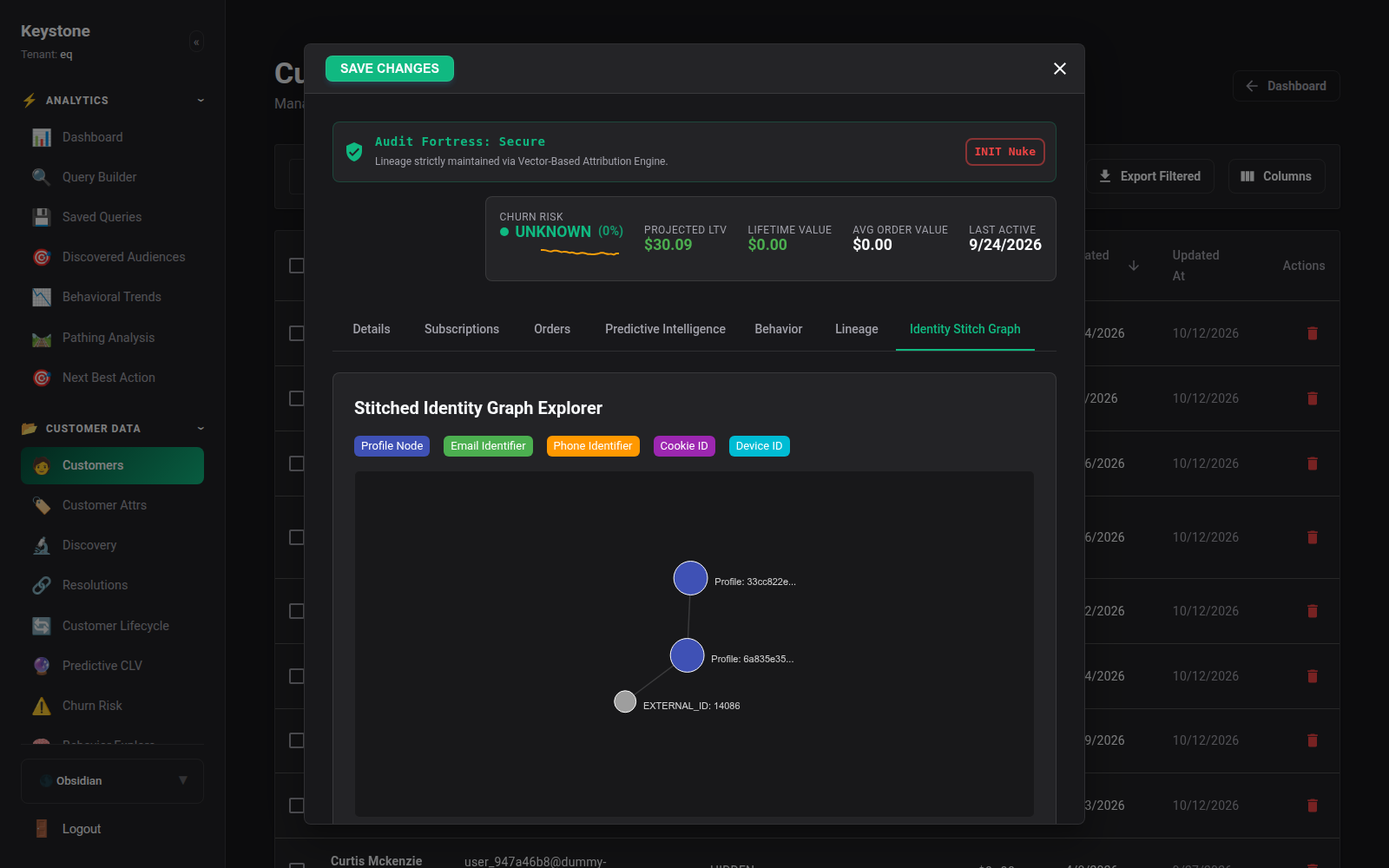
- Click any customer row to open the complete Customer 360 Profile.
- Explore the sub-tabs:
- Overview: General contact info, lifetime value, RFM segment tier, and primary identifiers.
- Subscriptions: Active recurring plans, churn risk status, and monthly billing velocity.
- Orders: Historical transactions, line items, and fulfillment timestamps.
- Behavioral Events: Real-time stream of pageviews, clicks, searches, and cart updates.
- Identity Graph: Visual map of all linked cookie IDs, email addresses, and devices.
Step 4: Installing the Web Tracker
To begin streaming live event traffic from your storefront or web application into Keystone CDP, embed the asynchronous snippet into the <head> of your website:
<!-- Keystone CDP Tracker SDK -->
<script
    src="https://cdp.your-domain.com/v1/js/tracker.js"
    data-api-key="YOUR_PUBLIC_TRACKING_KEY"
></script>
Identify authenticated users when they log in:
// Associate browser session with customer ID and email
keystone('identify', 'cust_98124', {
    email: '[email protected]',
    first_name: 'Sarah',
    last_name: 'Connor'
});
Track key conversion actions:
// Track product purchase
keystone('track', 'Order Completed', {
    order_id: 'ORD-77218',
    total: 129.99,
    currency: 'USD',
    products: [
        { product_id: 'PROD-100', name: 'Ceramic Turbine', price: 129.99, quantity: 1 }
    ]
});
Step 5: Verifying Ingestion in Real-Time
Verify that events are arriving successfully:
1. Navigate to System -> Ingestion Monitor (/ingest/monitor).
2. Trigger an action on your website (e.g. view a page or add an item to your cart).
3. The event will appear within milliseconds in the live telemetry console.

Next Steps
Now that your workspace is active and receiving telemetry: - Build dynamic cohorts with the Audience Segments Guide. - Explore the Visual Query Builder. - Analyze customer journeys with Pathing Analysis.